Break the Language Barrier with Instant Messages Translation
About This QuickTip
iOS 26 introduces live translation in Messages. Learn how to turn it on, customise your view, and chat seamlessly in multiple languages — even in group chats.
Step by Step
Chat in your own language
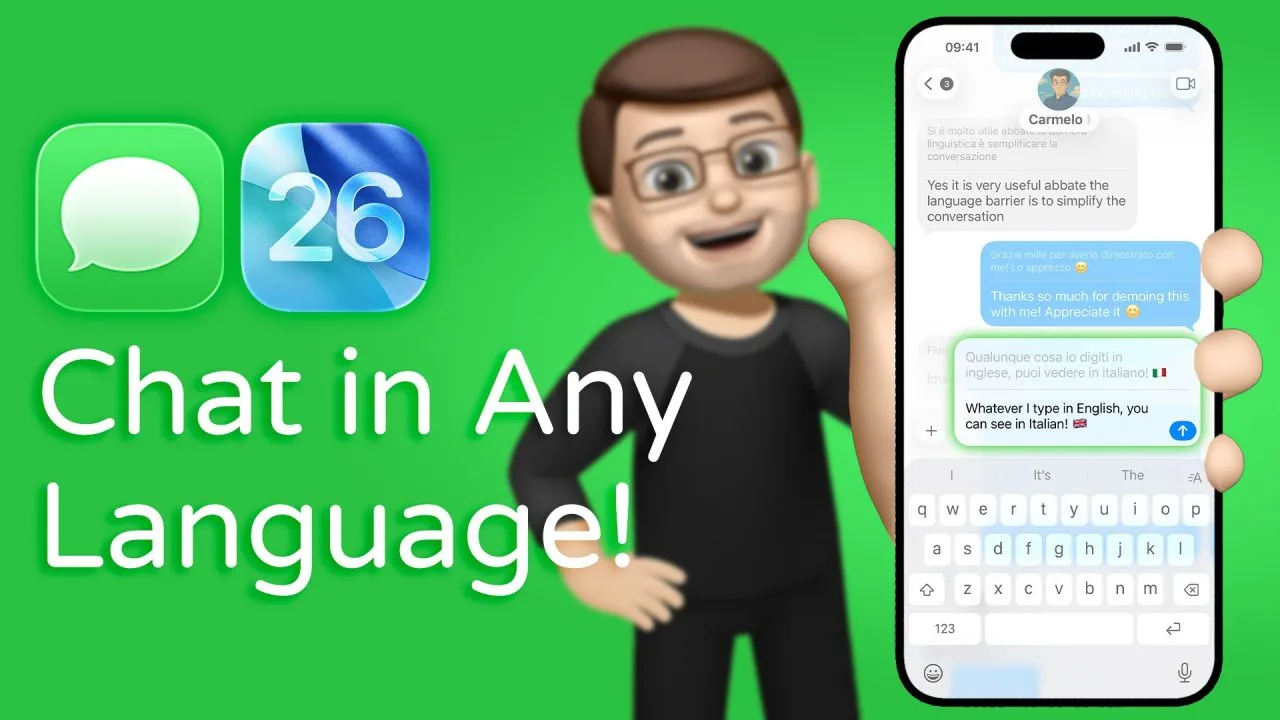
Type your message in your own language and it will get translated on the other person's phone as you're chatting. When they reply, the writing at the top is in their language and the writing underneath is in yours.
Choose how translations display
Tap in the middle of the message to choose to view your language only, and the translation will just apply as if they were chatting to you in your language the whole time. I quite like seeing both languages. I think it's really interesting, and it's also a good way of learning.
Turn on Auto Translate
This works automatically if Messages detects a supported language that isn't your native language. Otherwise, tap the contact picture at the top of the screen and turn on Auto Translate, where you can specify which languages you want to translate to and from. You can turn the feature off here too if you don't want to use it.
Watch it translate as you type
As you type in the Messages box, you can see it translating in real time what you're saying into what the other person will see.
Transcript
The translation feature in the Messages app is one of my favourite new features in iOS 26. It completely removes the language barrier when you’re messaging friends, colleagues, or family, because it will convert messages between two languages seamlessly.
In this conversation with Carmelo, I’m typing in English and they’re typing in Italian, and yet we can both fully understand what each other is saying thanks to the translations. You can see here that as Carmelo replies, the writing at the top is in Italian, and the writing underneath is in English. I can then reply in English, and the message will get translated to Italian on their phone as we’re chatting.
I can also customise how it displays on my phone. Right now, I’m seeing both the Italian and English messages. But if I tap in the middle here, I can choose to view English only, and then the translation will just apply as if Carmelo was chatting to me in English the whole time. I quite like seeing both languages — I think it’s really interesting, and it’s also a good way of learning.
This setting works either automatically if Messages detects a supported language that isn’t your native language, or you can tap the contact picture at the top of the screen and turn on Auto Translate. Here you can specify which languages you want to translate to and from. And of course, you can turn the feature off if you don’t want to use it.
Now, I’ve re-enabled the feature. As I’m typing in the Messages box, you can see it translating in real time what I’m saying in English to what Carmelo will see in Italian.
What’s great is that it also works in group chats, so it doesn’t have to be just a one-on-one conversation. And it also works on phone calls and in FaceTime — both of which I’ll demo in other videos.
That’s the translation feature in Messages, built into iOS 26. It’s super easy to use and incredibly powerful. If you want to see what else is new on your iPhone, check out my channel down below and make sure you subscribe while you’re there. See you next time.
Frequently Asked Questions
How do I translate messages in the Messages app on iPhone?
In iOS 26, it works automatically if Messages detects a supported language that isn't your native language. You can also tap the contact picture at the top of the screen and turn on Auto Translate, then choose which languages you want to translate to and from.
Can I see only the translated message instead of both languages?
Yes. Tap in the middle of the message and choose to view your language only, and it will look as if the other person was chatting to you in your language the whole time.
Does Messages translation work in group chats?
Yes, it also works in group chats, so it doesn't have to be just a one-on-one conversation.
Good to know
- It also works in group chats, so it doesn't have to be just a one-on-one conversation.
- Translation also works on phone calls and in FaceTime, not just in Messages.
Technical details: This QuickTip was recorded in August 2025.
Disclaimer and trademarks
The content used in this video is intended for educational and informational purposes only. All rights to the images, music, clips, and other media used belong to their respective owners. I do not claim ownership over any third-party content used. This video has not been authorised, sponsored, or otherwise approved by Apple Inc. iPhone and iMessage are trademarks of Apple Inc., registered in the U.S. and other countries and regions. iOS is a registered trademark of Cisco Systems Inc. Whilst I have done my best to list all applicable trademarks for this video, in the (hopefully unlikely) event that I have missed any you can find a full list of trademarks registered to Apple Inc. on their website. Finally, please note that whilst every effort has been made to ensure the information contained within this video was correct at time of publication, please be aware that as future updates and software changes occur some or all elements of this video may become outdated. I will endeavour to remove videos which are completely obsolete so as not to cause confusion!