Switch Between Classic Mode and Categories View in Mail
About This QuickTip
Discover how to use the new categories in the iPhone Mail app with iOS 18.2! This update introduces four inbox categories, but if you prefer the classic Mail style, I’ll show you how to unlock the All Mail view or disable categories entirely. Learn how to switch between Categories and List View to customise your inbox exactly how you like it.
Step by Step
Swipe left across the categories
To see all of your messages again, swipe left across the four categories at the top. This brings up a secret fifth category called All Mail, which makes your inbox feel much more like it did in the past, with all of your messages in one place.
Tap the three dots
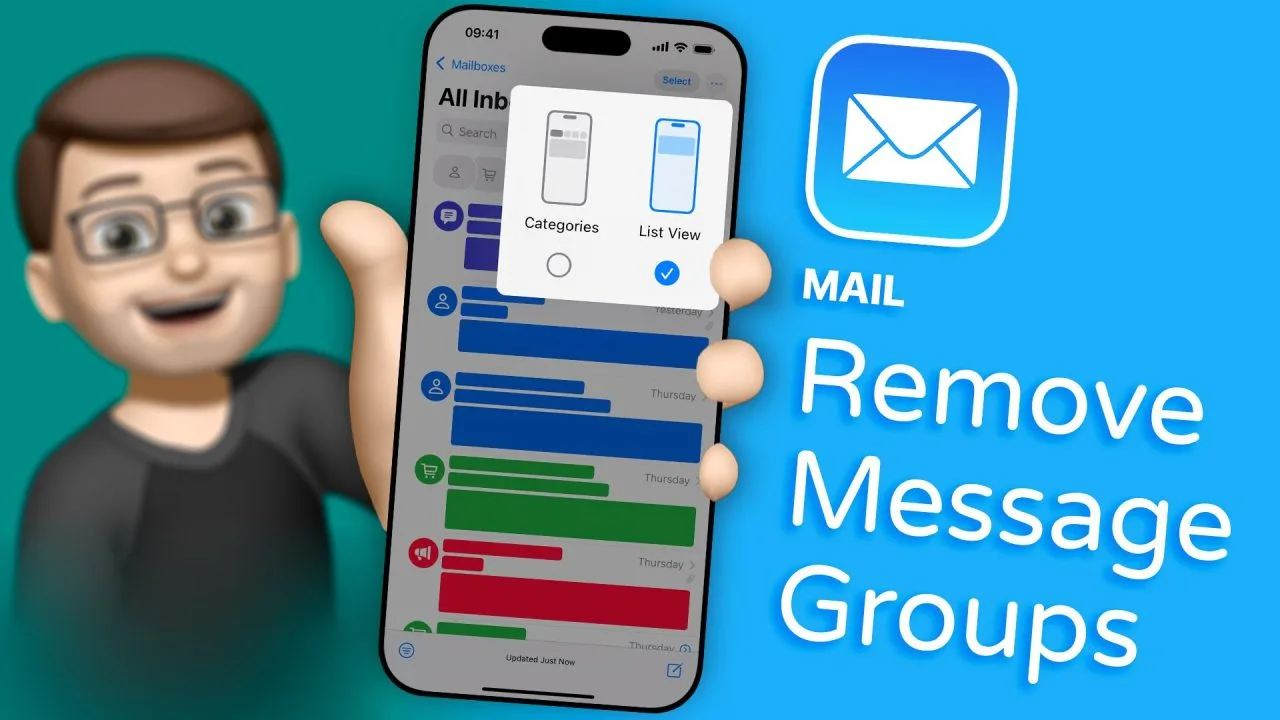
You can also disable the categories completely and go back to the old classic-style Mail app. All you need to do is tap the three dots in the corner.
Choose Categories or List View
From there, you can choose Categories or List View. List View is the traditional layout you had before, and for now, I think I prefer the classic Mail style.
Transcript
The iPhone Mail app has had a big update in iOS 18.2, introducing four categories at the top that attempt to filter your mail for you. This can be quite useful in some instances, but to be honest, I find it a bit frustrating at times. The messages I want are often hidden in a category I don’t check that often, and I end up missing important things.
One way to see all of your messages again is to swipe left across these four categories, which kind of unlocks a secret fifth category called All Mail. This view makes your inbox feel much more like it did in the past, where you can see all of your messages in one place. However, you still have the option to jump between those categories if you want to.
You can also disable the categories completely and go back to the old classic-style Mail app. All you need to do is tap the three dots in the corner, and from there, you can choose Categories or List View. List View is the traditional layout you had before. You can jump back and forth between these layouts anytime you like.
For now, I think I prefer the classic Mail style.
If you want more tips to help you control and make the most of your iPhone, please check out my channel down below. And while you’re there, don’t forget to subscribe! I’ll see you next time.
Frequently Asked Questions
How do I turn off the categories in the iPhone Mail app?
Tap the three dots in the corner and choose List View. This disables the categories and takes you back to the traditional layout you had before.
How do I see all of my emails in one place in iOS 18.2 Mail?
Swipe left across the four categories at the top to find a secret fifth category called All Mail. This shows all of your messages in one place, much more like it did in the past.
Can I switch the Mail categories back on after using List View?
Yes. Tap the three dots in the corner and choose Categories, and you can jump back and forth between these layouts anytime you like.
Good to know
- In the All Mail view, you still have the option to jump between those categories if you want to.
- You can jump back and forth between Categories and List View anytime you like.
Disclaimer and trademarks
The content used in this video is intended for educational and informational purposes only. All rights to the images, music, clips, and other media used belong to their respective owners. I do not claim ownership over any third-party content used. This video has not been authorised, sponsored, or otherwise approved by Apple Inc. iPhone is a trademark of Apple Inc., registered in the U.S. and other countries and regions. iOS is a registered trademark of Cisco Systems Inc. Whilst I have done my best to list all applicable trademarks for this video, in the (hopefully unlikely) event that I have missed any you can find a full list of trademarks registered to Apple Inc. on their website. Finally, please note that whilst every effort has been made to ensure the information contained within this video was correct at time of publication, please be aware that as future updates and software changes occur some or all elements of this video may become outdated. I will endeavour to remove videos which are completely obsolete so as not to cause confusion!