Adjust Tone for more Realistic and Lifelike Photos
About This QuickTip
In this video, I explore how the new Photographic Styles feature on iPhone 16 can help you capture more realistic and natural-looking photos by adjusting the tone setting. This powerful tool allows you to reduce the amount of HDR processing applied to your images, preventing them from looking flat or over-processed. Learn how to fine-tune your photos both before and after taking them, ensuring they reflect the true beauty of the moment with more lifelike lighting and shadows.
Step by Step
Open the Styles editing grid
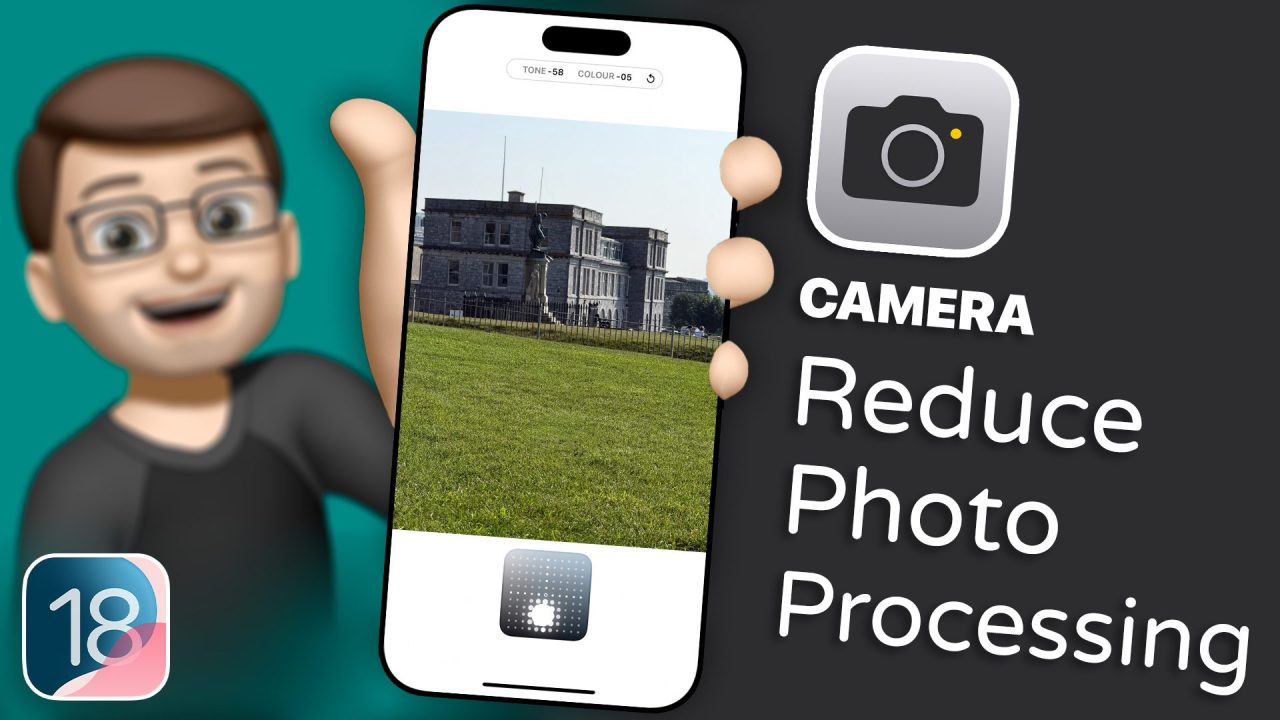
Tap the Styles button in the top corner of the Camera app and open up the editing grid at the bottom for whichever style you're using.
Move the white dot to adjust tone
Move the white dot up or down to adjust the tone setting. Moving it up will brighten everything and reduce the amount of shadows, whereas moving it down will do the opposite, darkening the shadows and midtones.
Return to the main Camera mode
Once you find a position on that grid you prefer, tap back into the middle of the viewfinder to return to the main Camera mode. Your settings will be remembered, and photos taken from this point on will have a different style of processing applied to them.
Change the tone after taking a photo
You can also change this after you've taken the photo without reducing the image quality. Edit a photo from the Photos app, tap Styles at the bottom and tap onto your chosen style, and you'll get that same grid back up to fine-tune the tone of your photo.
Questions This Answers
What does Tone do in Photographic Styles on iPhone 16?
Tone reduces the amount of high dynamic range (HDR) processing the iPhone camera applies to your images. Moving it up brightens everything and reduces the shadows, whilst moving it down darkens the shadows and midtones.
Why do my iPhone photos look flat?
Sometimes photos can look a little bit flat because the shadows have been brightened and the highlights have been darkened to ensure that everything is exposed properly. This can create an almost dull and not-quite-lifelike image, and Tone allows you to change this.
Can you change the Photographic Style of a photo after taking it?
Yes, and without reducing the image quality. Edit the photo from the Photos app, tap Styles at the bottom, tap onto your chosen style and you'll get the same grid to fine-tune the tone.
Transcript
The new Photographic Styles feature on iPhone 16 has a really powerful tool called Tone. While that doesn’t sound very exciting, what it essentially does is reduce the amount of high dynamic range (HDR) processing the iPhone camera applies to your images. So, what does that mean?
Well, sometimes photos you take can look a little bit flat because the shadows have been brightened, and the highlights have been darkened to ensure that everything is exposed properly. However, in doing so, it can create an almost dull and not-quite-lifelike image that appears very flat.
Tone allows us to change this. All I need to do is tap the Styles button in the top corner of the Camera app and open up the editing grid at the bottom for whichever style I’m using. From here, I can move the white dot up or down to adjust the tone setting. Moving it up will brighten everything and reduce the amount of shadows, whereas moving it down will do the opposite, darkening the shadows and midtones.
As you experiment with this, you’ll likely find a position on that grid you prefer, and you can simply tap back into the middle of the viewfinder to return to the main Camera mode. Your settings will be remembered, and photos taken from this point on will have a different style of processing applied to them.
Incredibly, you can also change this after you’ve taken the photo without reducing the image quality. Simply edit a photo from the Photos app, tap Styles at the bottom, and from there, you can tap onto your chosen style. You’ll get that same grid back up, allowing you to fine-tune the tone of your photo.
I’ve been exploring this feature for a couple of hours now while sitting on the seafront in Plymouth, and it really does have a noticeable impact on how my iPhone processes the photos I take. I can see myself using this feature much more in the future to get more realistic and less processed images from my iPhone camera.
And if you found this video interesting and want to learn more about the iPhone 16 — or iPhones in general — please do subscribe to my channel below. There are hundreds of QuickTips videos just like this one to help you get the most out of your device. And if you want to learn what’s new in iOS 18, check out my ebook at the link below.
Technical details: This QuickTip was recorded on an iPhone 16 Pro Max running iOS 18 in September 2024.
The content used in this video is intended for educational and informational purposes only. All rights to the images, music, clips, and other media used belong to their respective owners. I do not claim ownership over any third-party content used. This video has not been authorised, sponsored, or otherwise approved by Apple Inc. iPhone is a trademark of Apple Inc., registered in the U.S. and other countries and regions. iOS is a registered trademark of Cisco Systems Inc. Whilst I have done my best to list all applicable trademarks for this video, in the (hopefully unlikely) event that I have missed any you can find a full list of trademarks registered to Apple Inc. on their website. Finally, please note that whilst every effort has been made to ensure the information contained within this video was correct at time of publication, please be aware that as future updates and software changes occur some or all elements of this video may become outdated. I will endeavour to remove videos which are completely obsolete so as not to cause confusion!