How to Add Keywords to Photos in iOS 27
About This QuickTip
Your iPhone is clever at searching your photos, but it can't know that a concert at the Royal Albert Hall was actually the BBC Proms. iOS 27 fixes that with keywords in the Photos app, letting you tag any picture with an event name, a project or anything else you'll want to search for later. I'll show you where to add them and how searching that keyword brings the photo straight up anywhere on your iPhone.
Step by Step
Open the photo's information panel
Open the photo you want to tag, then tap on the little information icon on the photo, or swipe up.
Add keywords in the Keywords box
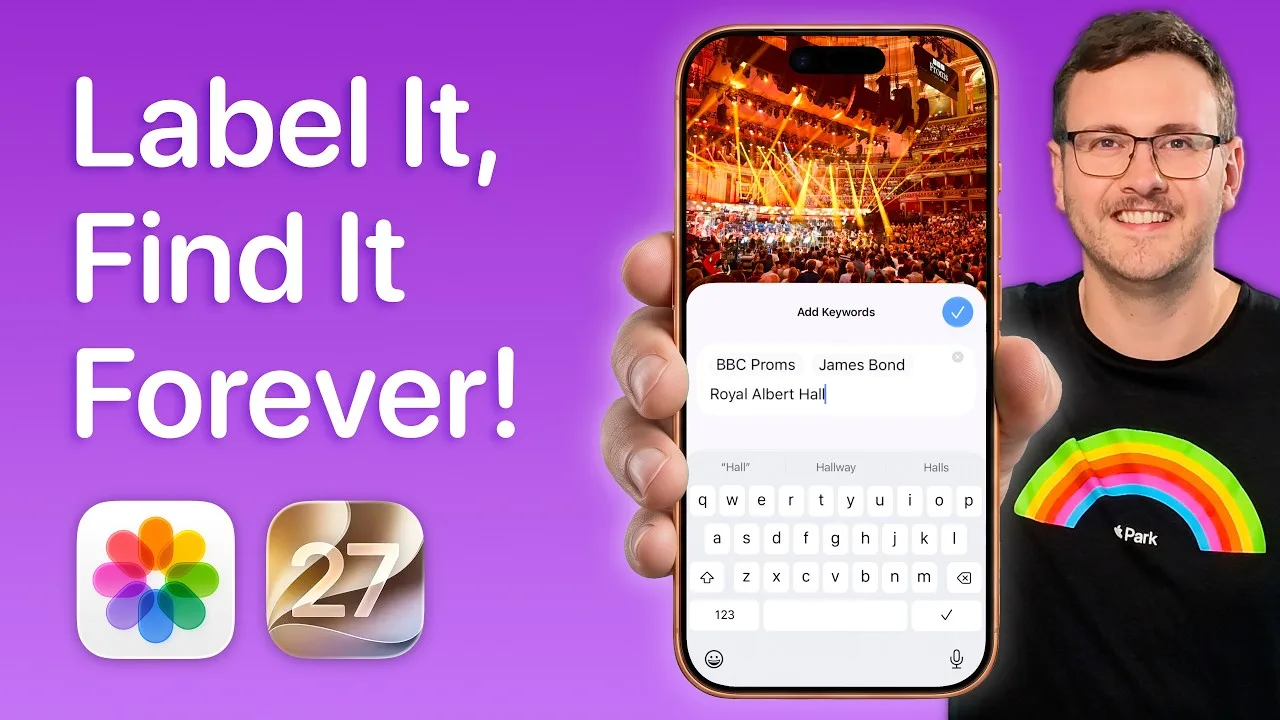
At the very bottom of the information panel, you're going to see the Keywords box. Tap into here and add tags, essentially, to your photo, like the name of the event or the place. When you're done, those tags are now associated with that photo.
Search for your keyword
Whenever you're searching in the Photos app, or just generally searching on your iPhone, type in one of your keywords. That picture will now show up, because it's been tagged with that keyword.
Transcript
There are lots of fancy AI tools in the Photos app in iOS 27, but there are also some really nice tools to help you better organise your photos, and I'm just as excited about those, because I'm a bit of a weirdo.
Let me show you how one in particular works, where you can add keywords to your photos to make it way easier to search for them in the future.
Before I do that, though, if you're new around here, then hi, my name is Jacob. I'm your friendly Apple expert here on YouTube, to help you make the most of your iPhone. Do tap subscribe if you want more great tips in your feed.
Okay, so I've got a photo here of a gig at the Royal Albert Hall, a James Bond Prom, actually it was really good. And I know that in the future I'm going to want to search to try and find this picture. But the problem is, my phone knows the location, it knows I was in London at the Royal Albert Hall, but it doesn't know what I was doing there, it doesn't know what the event is. So, if I were to search for BBC Proms or James Bond in my photo library, it's not going to show up.
So instead, what I'm going to do is tap on the little information icon on the photo, or I can swipe up, and then at the very bottom of the information panel, you're going to see the Keywords box at the bottom. We can now tap into here, and we can add tags, essentially, to your photo. So I can type in James Bond, I can type in BBC Prom, I can type in Royal Albert Hall. And then when I'm done, those tags are now associated with that photo.
Then whenever you're searching in the Photos app, or just generally searching on your iPhone, if you type in James Bond, that picture will now show up, because it's been tagged with that keyword.
It's a really simple feature, but it will make organising photo libraries much easier, especially if you start doing this as you take photos in the future.
And if you enjoyed this, I think you're going to enjoy this QuickTip too.
Frequently Asked Questions
How do I add keywords to photos on my iPhone?
In iOS 27, tap the little information icon on the photo or swipe up, and at the very bottom of the information panel you'll see the Keywords box. Tap into here and type in the tags you want associated with that photo.
Why doesn't my iPhone find a photo when I search for the event name?
Your phone knows the location of a photo, but it doesn't know what you were doing there or what the event is. Adding the event name as a keyword means the photo will show up when you search for it.
Do photo keywords work in iPhone search outside the Photos app?
Yes. Whenever you're searching in the Photos app, or just generally searching on your iPhone, typing in the keyword will bring up that picture.
Good to know
- My photo of a James Bond Prom at the Royal Albert Hall is a good example. My phone knows the location, it knows I was in London at the Royal Albert Hall, but it doesn't know what I was doing there. Searching for BBC Proms or James Bond wasn't going to bring it up until I added those keywords.
- It's a really simple feature, but it will make organising photo libraries much easier, especially if you start doing this as you take photos in the future.
Disclaimer and trademarks
The content used in this video is intended for educational and informational purposes only. All rights to the images, music, clips, and other media used belong to their respective owners. I do not claim ownership over any third-party content used. This video has not been authorised, sponsored, or otherwise approved by Apple Inc. iPhone is a trademark of Apple Inc., registered in the U.S. and other countries and regions. iOS is a registered trademark of Cisco Systems Inc. Whilst I have done my best to list all applicable trademarks for this video, in the (hopefully unlikely) event that I have missed any you can find a full list of trademarks registered to Apple Inc. on their website. Finally, please note that whilst every effort has been made to ensure the information contained within this video was correct at time of publication, please be aware that as future updates and software changes occur some or all elements of this video may become outdated. I will endeavour to remove videos which are completely obsolete so as not to cause confusion!