Turn any Emoji into an iMessage Sticker
About This QuickTip
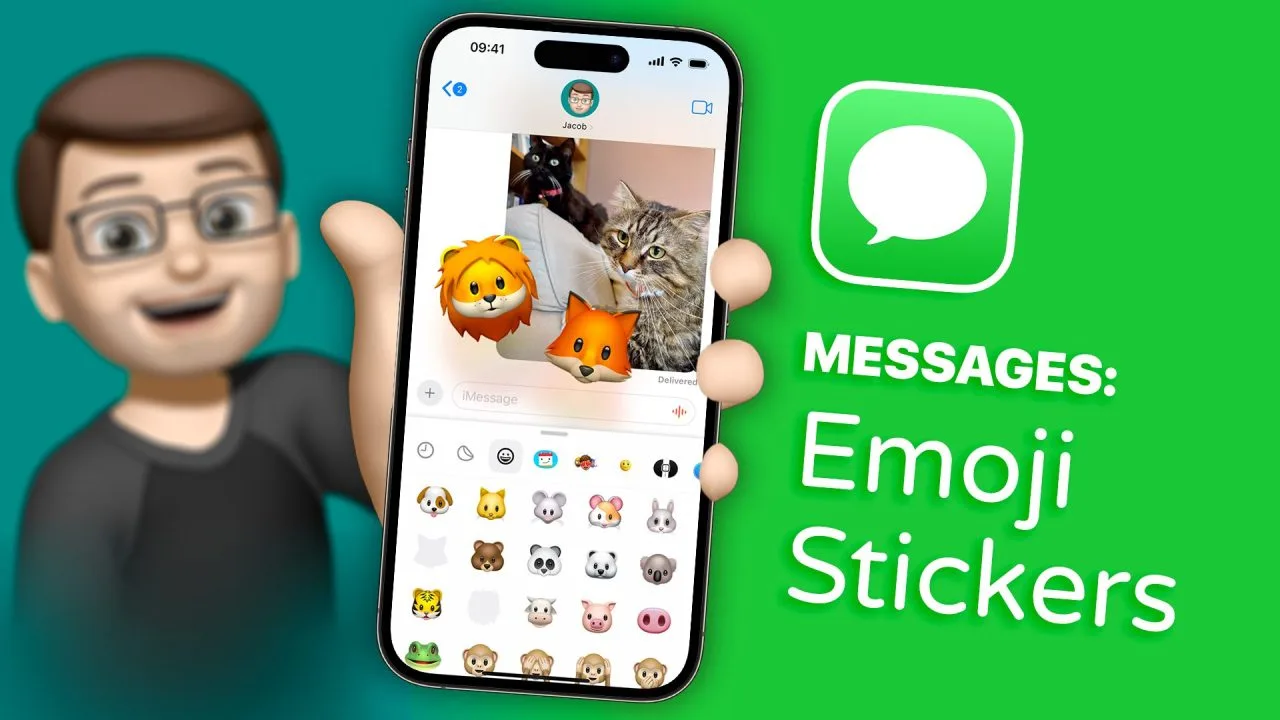
Are you ready to take your Emoji game to a whole new level? Join me in this tutorial where I'll introduce you to the fantastic world of Emoji Stickers on iOS 17. It's time to use emojis like stickers in iMessage and add an extra dose of fun to your conversations! I'll walk you through the process, showing you how to effortlessly transform any emoji into a cool sticker that you can place anywhere in your messages. From smileys to animals and everything in between, get ready to enhance your iMessage experience in a creative and expressive way.
Step by Step
Go into a Message thread
Open the Messages app and go into a Message thread. You can still send an Emoji as a text message just like normal.
Tap and drag the Emoji
Tap and drag the Emoji from that bottom page, whether it's in the search results or just in the Emoji gallery. Then you can place it anywhere you like in the conversation.
Place it on a message or photo
You can use it as an Emoji reaction to someone's message. If there's a photograph in the thread, you can put some Emoji on the picture and have a bit of fun making a little playful collage.
Transcript
Emojis have got a whole new set of talents in iOS 17, and you can use them in really exciting and innovative new ways.
If I go into a Message thread like this one, you all know you can send an Emoji as a text message just like normal - but what you can do now is you can tap and drag the Emoji from that bottom page (whether it's in the search results or just in the Emoji gallery) and then you can place it anywhere you like in the conversation.
That might mean you can use it as an Emoji reaction to someone's message, or perhaps like in this instance where I've got photograph I can put some Emoji on the picture and have a bit of fun and make a little playful collage.
This new way of communicating using Emojis makes your iPhone better than ever with iOS 17 - and it's not the only thing that's changed!
Lots of these updates are quite hidden and quite hard to discover, but luckily I've made a playlist on the end screen that you can check out now and then you'll be up to date on iOS 17.
And make sure you Subscribe down below to my channel if you want more iPhone tips on your YouTube homepage, that way you won't miss anything.
Frequently Asked Questions
How do I use an Emoji as a sticker in iMessage?
In iOS 17, all you need to do is tap and drag the Emoji from the bottom page, whether it's in the search results or just in the Emoji gallery, and then place it anywhere you like in the conversation.
Can I put Emoji on a photo in Messages on iPhone?
Yes. With iOS 17 you can drag Emoji onto a photograph in a Message thread and have a bit of fun making a little playful collage.
Can I react to a message with any Emoji on iPhone?
With iOS 17 you can drag any Emoji onto someone's message and use it as an Emoji reaction.
Disclaimer and trademarks
The content used in this video is intended for educational and informational purposes only. All rights to the images, music, clips, and other media used belong to their respective owners. I do not claim ownership over any third-party content used. This video has not been authorised, sponsored, or otherwise approved by Apple Inc. iPhone, iPad and iPadOS are trademarks of Apple Inc., registered in the U.S. and other countries and regions. iOS is a registered trademark of Cisco Systems Inc. Whilst I have done my best to list all applicable trademarks for this video, in the (hopefully unlikely) event that I have missed any you can find a full list of trademarks registered to Apple Inc. on their website. Finally, please note that whilst every effort has been made to ensure the information contained within this video was correct at time of publication, please be aware that as future updates and software changes occur some or all elements of this video may become outdated. I will endeavour to remove videos which are completely obsolete so as not to cause confusion!