Personalise your Playlists with Custom Playlist Artwork in Apple Music
About This QuickTip
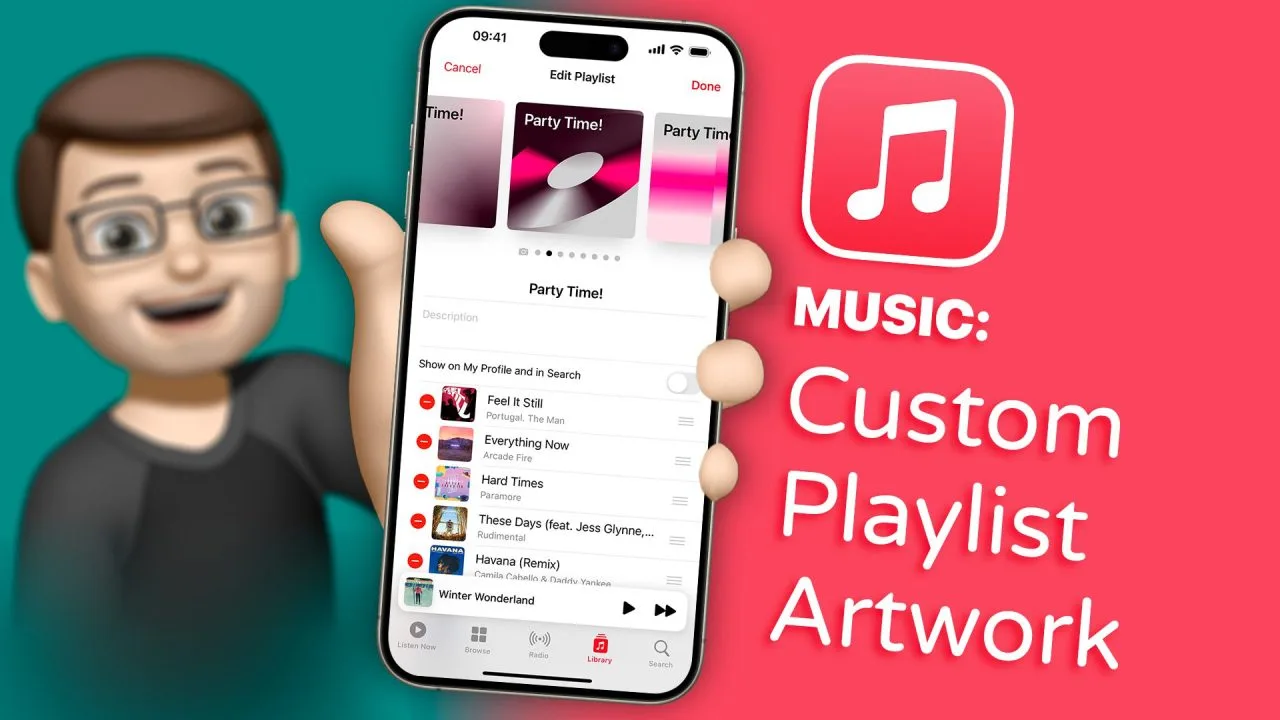
In this tutorial, I'll guide you through the exciting world of customizing your Apple Music playlist artwork on iOS 17.2. We'll delve into the simple yet powerful tools that allow you to add a personal touch to your music library. Whether you're a fan of geometric designs, artistic flair, or just want your playlist covers to match your mood, I've got you covered. I'll show you step by step how to edit, upload your own images, and explore a range of creative covers based on the colours of your favorite albums or singles. Let's make your music experience not only a treat for your ears but also a feast for your eyes. Get ready to transform your iPhone playlists into a visual masterpiece!
Step by Step
Press the three dots, then Edit
Open your playlist in the Apple Music app, press the three dots in the top corner and then go on to Edit.
Swipe sideways to change the cover
Swipe sideways on the cover to change it completely. You can upload your own image or your own artwork if you want to.
Swipe from the right for suggestions
Swipe across from the right and you'll get a selection of different geometric and artistic covers based on the colours of the artwork of the singles or albums in that playlist. Choose the one you like for your playlist.
Transcript
When you create a playlist in the Apple Music app, quite often it will make its own automatic artwork for you based on four of the album or single covers on the playlist. Now, while it's handy to see what's inside the playlist with this cover, it's missing a certain bit of visual appeal. A lot of the Apple playlists have got these cool abstract geometric playlist covers.
Well, now on iOS 17.2, you can edit the cover of your playlist to make it match your style. Here, I've got a playlist of some of my favourite Bob Dylan songs, and as you can see, the artwork is four different album covers. However, if I press the three dots in the top corner of my iPhone and then go on to edit, I can then swipe sideways to change this cover completely. I could upload my own image or my own artwork if I wanted to. Or, if I swipe across from the right, I then have a selection of different geometric and artistic covers based on the colours of the artwork of the singles or albums in that playlist.
For this playlist, there's a lot of black and white album covers, a lot of grayscale ones, and it's picking up those colours to make the artwork. Of course, if the playlist name changes, the artwork will change as well. I think I quite like this one for the playlist; it reminds you a little bit of piano keys or something. Let's try on one more playlist really quickly, and you'll see what I mean about the colours changing to the music in the playlist.
Here, I've got some Christmas tunes that we play around the house, and again, I'll press the three dots, go on to edit, and then you can see in the cover suggestions, the colours now match the colours of the songs in this playlist rather than the Bob Dylan playlist. It's a nice little way to customise your music on your iPhone and to make your playlists easier to find and recognise when you've got lots and lots of playlists going.
Frequently Asked Questions
How do I change the cover of a playlist in Apple Music?
On iOS 17.2, press the three dots in the top corner of your playlist, go on to Edit and then swipe sideways to change the cover completely.
Can I use my own image as playlist artwork in Apple Music?
Yes. Once you've gone on to Edit, you can swipe sideways and upload your own image or your own artwork if you want to.
Why are the Apple Music playlist cover suggestions different colours for each playlist?
The geometric and artistic covers are based on the colours of the artwork of the singles or albums in that playlist. My Bob Dylan playlist has a lot of black and white album covers, so it picks up those colours, whilst my Christmas playlist gets colours that match the songs in that one.
Good to know
- If the playlist name changes, the artwork will change as well.
Disclaimer and trademarks
The content used in this video is intended for educational and informational purposes only. All rights to the images, music, clips, and other media used belong to their respective owners. I do not claim ownership over any third-party content used. This video has not been authorised, sponsored, or otherwise approved by Apple Inc. iPhone, iPad and iPadOS are trademarks of Apple Inc., registered in the U.S. and other countries and regions. iOS is a registered trademark of Cisco Systems Inc. Whilst I have done my best to list all applicable trademarks for this video, in the (hopefully unlikely) event that I have missed any you can find a full list of trademarks registered to Apple Inc. on their website. Finally, please note that whilst every effort has been made to ensure the information contained within this video was correct at time of publication, please be aware that as future updates and software changes occur some or all elements of this video may become outdated. I will endeavour to remove videos which are completely obsolete so as not to cause confusion!