Create Calendar Events with Siri AI in iOS 27
About This QuickTip
The new Siri AI in iOS 27 can book an entire calendar event on your iPhone from you talking to it, including the location and notes, and it'll even ask a follow-up question if you forget the time. In this video I'll show you how I set up a meeting with a colleague in one natural request, then rescheduled it in a completely fresh conversation without repeating a single detail. It's a big step up from the old Siri.
Step by Step
Ask Siri for the event naturally
Say 'Hey Siri' and talk to your phone as naturally as you'd talk to a person. Tell it who the meeting is with, which day, where you're meeting and anything they need to bring, and Siri will add it to the event.
Answer any follow-up question
Give Siri a minute or two to work. If you forget to put something in, like the time, it'll ask you a follow-up question. All you need to do is answer it and it'll add the meeting to your calendar.
Start a new chat to change it
You can go further as well and start a whole new chat. Tell Siri which meeting you mean and what you need, for example that you need to push it back by about half an hour.
Let Siri update the meeting
Siri will move the event and tell you the new time. It's got the context of what you're talking about, so you don't need to repeat any of the details.
Transcript
Here's the thing: the new Siri AI is so different from the old Siri that it's really hard to remember it can actually do good things now. We can talk to our phone like it's an actual assistant, in a way we just couldn't before. Let me give you an example.
And before I do, if you're new around here, hi, I'm Jacob, your friendly Apple expert here to help you make the most of your iPhone on YouTube. So please do press subscribe.
Okay, so I want to give you a very quick demo of this new Siri AI, and in particular how we can use it to create events in our calendar. I'm going to talk to my phone as naturally as I'm talking to you now.
"Hey Siri, create a new calendar event for a meeting on Friday with Peter. We're going to meet in Plymouth, at the Costa Coffee there. We're going to talk about the new iPhone, so make sure he brings his old iPhone and the meeting notes we talked about before."
We'll give Siri a minute or two to work. "What time is the meeting?" It's asked me a follow-up question there, I forgot to put that in. "The meeting's at 10 a.m."
"I've created your meeting with Peter for this Friday, the 18th of September, from 10 to 11 a.m. at Costa Coffee in Plymouth."
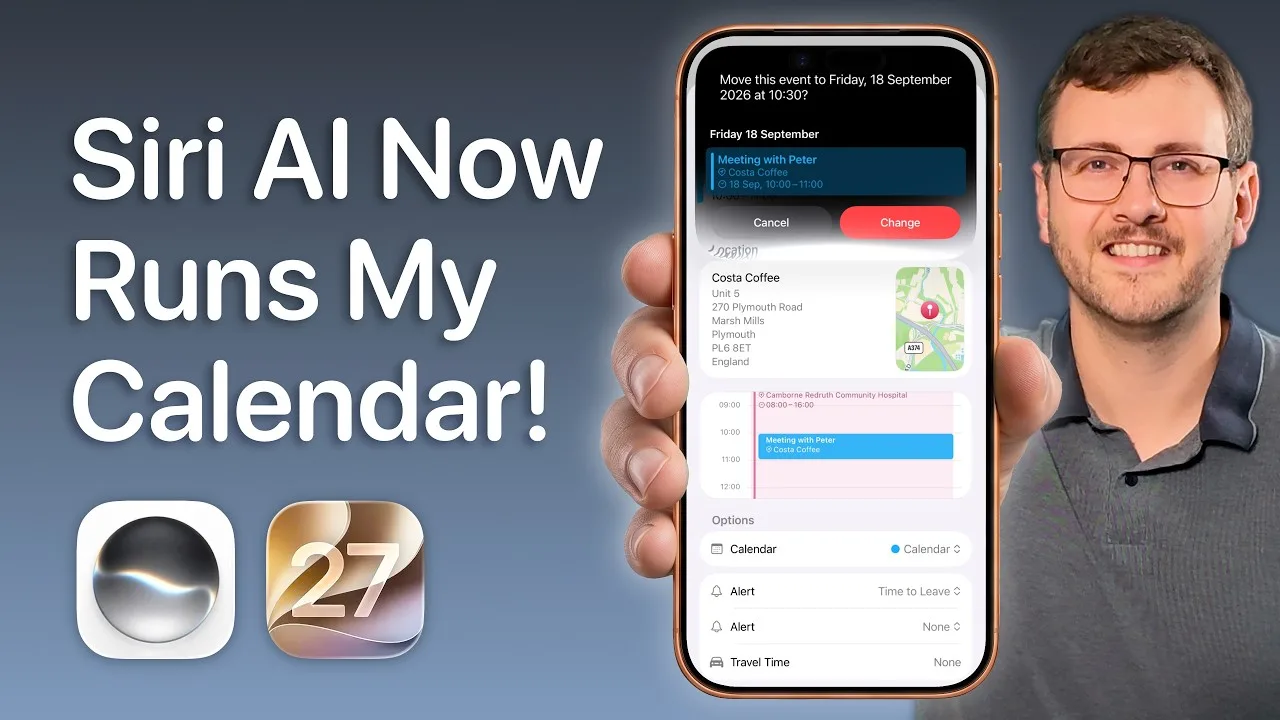
And just like that, it's added it to my calendar. But we can go further as well. In fact, let's start a whole new chat. "Hey Siri, I've got a meeting on Friday with Peter, but I need to push it back by about half an hour. Can you change it for me?"
"Moved this event to Friday, the 18th of September, to 10:30."
And just like that, it's updated that meeting for me, and it's got the context of what I'm talking about.
So this new Siri AI is a really powerful assistant, give it a try. And if you want to see more tips and videos on what you can do with iOS 27, please do subscribe, and then check out this Quick Tip next.
Frequently Asked Questions
Can Siri create calendar events in iOS 27?
Yes. With the new Siri AI you can talk to your phone naturally and it'll create the event, including the location and notes, and add it to your calendar.
What happens if I forget to tell Siri the time of a meeting?
Siri will ask you a follow-up question. When I forgot to put the time in, it asked me what time the meeting was, and I just told it.
Can Siri move a calendar event without me repeating the details?
Yes. I started a whole new chat, told Siri I needed to push my Friday meeting with Peter back by about half an hour, and it updated that meeting for me because it's got the context of what I'm talking about.
Good to know
- The new Siri AI is so different from the old Siri that it's really hard to remember it can actually do good things now.
- When I told Siri the meeting was at 10 a.m., it worked out the date for this Friday and set the meeting from 10 to 11 a.m. at Costa Coffee in Plymouth.
Disclaimer and trademarks
The content used in this video is intended for educational and informational purposes only. All rights to the images, music, clips, and other media used belong to their respective owners. I do not claim ownership over any third-party content used. This video has not been authorised, sponsored, or otherwise approved by Apple Inc. iPhone is a trademark of Apple Inc., registered in the U.S. and other countries and regions. iOS is a registered trademark of Cisco Systems Inc. Whilst I have done my best to list all applicable trademarks for this video, in the (hopefully unlikely) event that I have missed any you can find a full list of trademarks registered to Apple Inc. on their website. Finally, please note that whilst every effort has been made to ensure the information contained within this video was correct at time of publication, please be aware that as future updates and software changes occur some or all elements of this video may become outdated. I will endeavour to remove videos which are completely obsolete so as not to cause confusion!