How to Hide Your Location in Find My and Messages in iOS 27
About This QuickTip
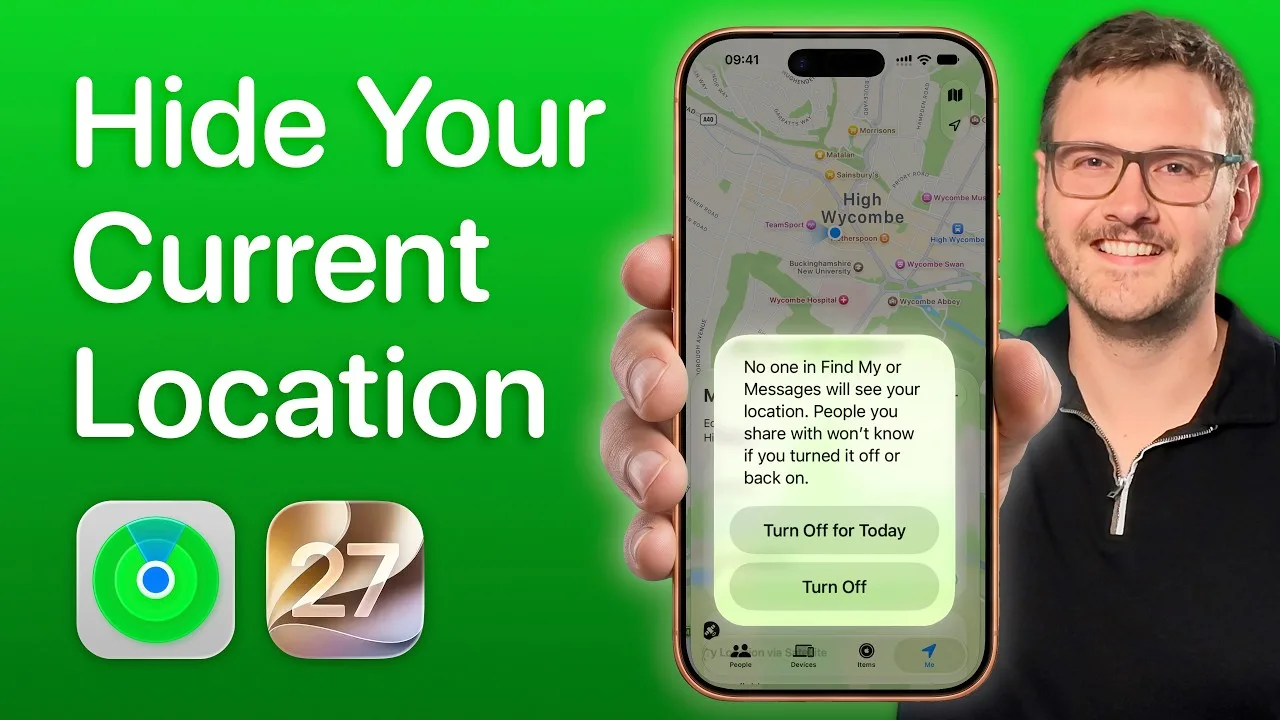
Planning a surprise or keeping a trip quiet? iOS 27 brings two new ways to hide your location on iPhone, one in Find My and one in Messages, and neither sends a notification to anyone. I'll show you how to switch off location sharing completely or just until tomorrow, and how to hide it from one person, who'll simply see Location Not Found.
Step by Step
Tap Me in Find My
In the Find My app, tap onto Me at the bottom on the toolbar. You now have a new toggle that says Share My Location.
Turn off Share My Location
Tap on Share My Location, and you then have the option to turn it off completely, or to turn it off until tomorrow. If you choose until tomorrow, location will start sharing again at 4 in the morning the following day.
Open the conversation in Messages
If you only want to hide your location from one specific person, jump into Messages and open your conversation with them. Tap onto their name at the top to open up the conversation history.
Tap Hide My Location
Go down a little bit and there's the option to Hide My Location. Tapping on there has done the job, and they now can't see where you are if you move your phone around.
Transcript
In iOS 27, there are now two new ways to hide your location temporarily: using Find My, and using Messages. I'm going to show you how both work, and why you might need to use this feature.
And if you're new around these parts, then hi, I'm Jacob. I'm your friendly Apple expert here to help you make the most out of your devices. Make sure you subscribe, and you won't miss any quick tips in the future.
Okay, I use Find My to share my location with my family and friends. But sometimes I might want to turn the location off. Maybe we're organising a surprise party, or maybe I've gone somewhere secret to buy a present - I don't want people to know where I am. Well, in the Find My app, if I tap onto Me at the bottom on the toolbar there, I now have a new toggle that says Share My Location. When I tap on here, I then have the option to turn it off completely, or to turn it off until tomorrow. And then location will start sharing again at 4 in the morning the following day.
No one that you share with is going to get a notification about this. So no one's going to suddenly think, "Oh, hang on, where's Jacob? He's hidden his location." It will just simply say "Location Not Found," like it does sometimes when your phone hasn't got any signal.
But maybe you don't want to hide your location from everyone in Find My - it's more just one specific person. So if we jump into Messages here, I'm texting my wife, and let's say I want to hide my location from her for a second while I'm organising something for her. Well, if I tap onto her name at the top to open up the conversation history, I can then go down a little bit and there's the option here to Hide My Location. Simply tapping on there has done the job - she now can't see where I am if I move my phone around. And that means my privacy is secure until I want to start sharing it again later.
So that's the new hide location feature, and there's tons more new in iOS 27. Make sure you hit subscribe, and then check out this QuickTip next.
Frequently Asked Questions
How do I hide my location on iPhone without anyone being notified?
In iOS 27, open Find My, tap onto Me at the bottom and turn off Share My Location. No one you share with gets a notification, they'll just see Location Not Found.
Can I hide my location from just one person on iPhone?
Yes. In Messages, tap onto their name at the top of your conversation, go down a little bit and tap Hide My Location.
When does location sharing come back on if I turn it off until tomorrow?
Your location will start sharing again at 4 in the morning the following day.
Good to know
- No one that you share with is going to get a notification about this. It will just say Location Not Found, like it does sometimes when your phone hasn't got any signal.
- Find My is for hiding your location from everyone you share with, whereas the Messages option is for when it's more just one specific person.
- Your privacy is secure until you want to start sharing your location again later.
Disclaimer and trademarks
The content used in this video is intended for educational and informational purposes only. All rights to the images, music, clips, and other media used belong to their respective owners. I do not claim ownership over any third-party content used. This video has not been authorised, sponsored, or otherwise approved by Apple Inc. iPhone is a trademark of Apple Inc., registered in the U.S. and other countries and regions. iOS is a registered trademark of Cisco Systems Inc. Whilst I have done my best to list all applicable trademarks for this video, in the (hopefully unlikely) event that I have missed any you can find a full list of trademarks registered to Apple Inc. on their website. Finally, please note that whilst every effort has been made to ensure the information contained within this video was correct at time of publication, please be aware that as future updates and software changes occur some or all elements of this video may become outdated. I will endeavour to remove videos which are completely obsolete so as not to cause confusion!