Customise your StandBy Screen Clock with Different Styles, Colours and More!
About This QuickTip
In this QuickTips video, I'll be your iOS 17 guru, showing you how to personalise and make your StandBy screen truly unique. Join me as I guide you through customising your clock face, font, colours, and style with ease. Whether you want a sleek and modern look or something more playful, I'll demonstrate how to tweak every aspect of your StandBy screen clock. With iOS 17, you have the power to transform your device's appearance to match your taste perfectly. Let's dive in and give your StandBy screen a fresh, personalised makeover!
Step by Step
Slide to change the clock style
Whilst your iPhone is in StandBy mode, slide up and down to move through the clocks and change the whole clock style itself.
Tap and hold the clock face
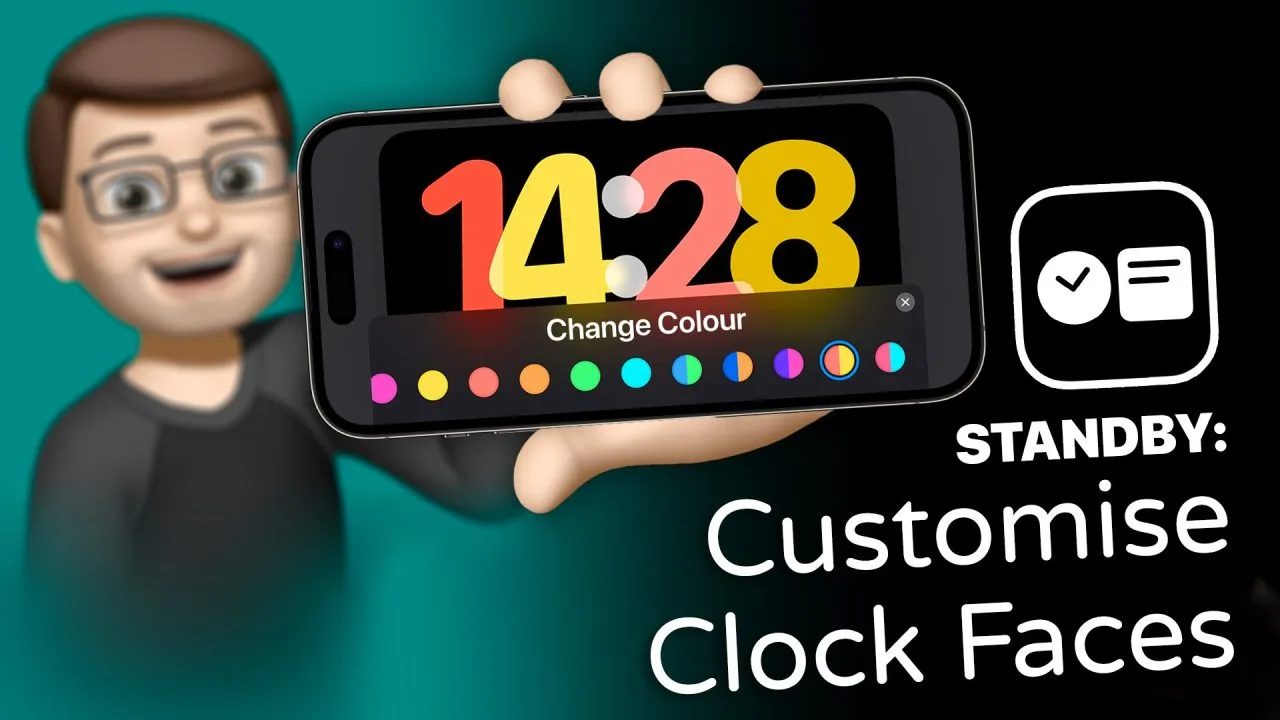
To change the colour of your clock face, all you have to do is tap and hold on the clock face you want to change, then press the white dot in the bottom right corner. This one is quite well hidden.
Choose a colour or effect
You'll then have different options at the bottom, and sometimes different colour effects that you can apply. Some of these are quite subtle and some are quite playful, so as you choose between them you can pick a style that you really like the look of.
Transcript
The Standby mode in iOS 17 is a really good way of using your iPhone as like a little secondary display on your desk, or by your nightstand, or in the kitchen.
You can have a clock on there of course, and you can actually customise what this clock looks like.
There are two different ways of doing this: one you can change the whole clock style itself simply by sliding up and down to move through the clocks, and two (which is quite well hidden) is you can customise the color.
To change the color of your clock face all you have to do (while it's in Standby mode) is tap and hold on the clock face you want to change and then press the white dot in the bottom right corner.
Then you have different options at the bottom and sometimes different color effects that you can apply.
Some of these are quite subtle, some are quite playful - but as you choose between them you can choose a style that you really like the look of.
I really like this particular one - it feels very playful (especially when the clock changes) oh, just like that!
As I go through and I can customise and look for other ones, I can really fine tune how this feature works.
I can choose the clock face that works best for me and, because it links the Magsafe charger it's on, if I choose one clock face at work and a different one at home it will remember that for me and it will change automatically.
The only one you can't change the color on is the World Clock, but you can add new cities to here and you can do that simply by opening the Clock app on your iPhone and adding a new time zone / new city from there.
Being able to change the color of a clock on Standby may not be the most earth-shattering change in the world, but it's another example of a little thing that iOS 17 does really well.
And there are dozens more of these short and simple tips that can help you make the most of your iPhone, so jump onto the playlist on the end screen here and you'll get all of my iOS 17 tips.
If you want more videos from me please do Subscribe down below that way you won't miss any in the future.
Frequently Asked Questions
How do I change the colour of the StandBy clock on iPhone?
Whilst it's in StandBy mode, tap and hold on the clock face you want to change and press the white dot in the bottom right corner. You'll then have different colour options at the bottom to choose from.
Can you change the colour of the World Clock in StandBy?
No, the World Clock is the only one you can't change the colour on. You can add new cities to it though, by adding a new time zone in the Clock app on your iPhone.
Can StandBy show a different clock at home and at work?
Yes. Because it links to the MagSafe charger it's on, if you choose one clock face at work and a different one at home, it will remember that for you and change automatically.
Good to know
- Because it links to the MagSafe charger it's on, if you choose one clock face at work and a different one at home, it will remember that for you and change automatically.
- The only one you can't change the colour on is the World Clock, but you can add new cities to it by opening the Clock app on your iPhone and adding a new time zone or city from there.
Disclaimer and trademarks
The content used in this video is intended for educational and informational purposes only. All rights to the images, music, clips, and other media used belong to their respective owners. I do not claim ownership over any third-party content used. This video has not been authorised, sponsored, or otherwise approved by Apple Inc. iPhone, iPad and iPadOS are trademarks of Apple Inc., registered in the U.S. and other countries and regions. iOS is a registered trademark of Cisco Systems Inc. Whilst I have done my best to list all applicable trademarks for this video, in the (hopefully unlikely) event that I have missed any you can find a full list of trademarks registered to Apple Inc. on their website. Finally, please note that whilst every effort has been made to ensure the information contained within this video was correct at time of publication, please be aware that as future updates and software changes occur some or all elements of this video may become outdated. I will endeavour to remove videos which are completely obsolete so as not to cause confusion!