Summarise & Analyse Screenshots with Apple Intelligence
About This QuickTip
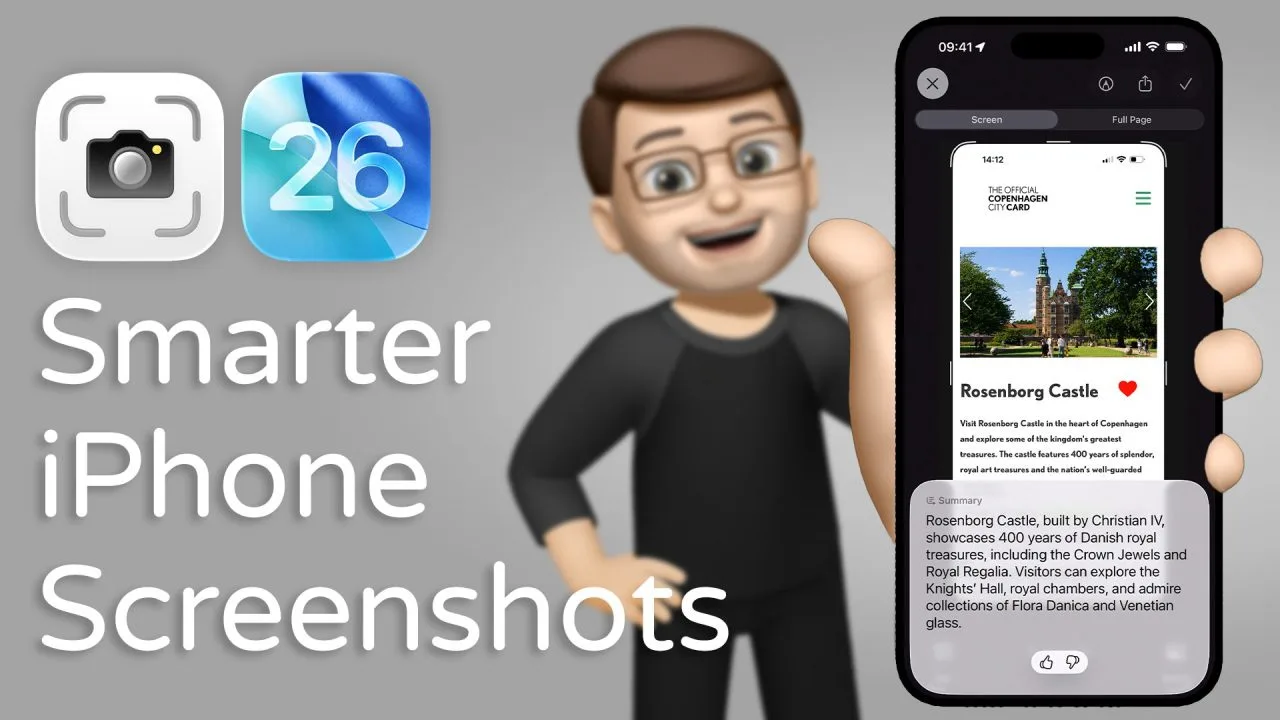
iOS 26 adds Apple Intelligence and ChatGPT support to screenshots, making them smarter and more interactive. In this video, I’ll walk you through the new interface, show you how to use the Summarise button, and explain how to send screenshots to ChatGPT for detailed answers.
Step by Step
Take a screenshot
Take a screenshot of a web page, or anything else. You're going to notice a slightly different interface, as any screenshot you take will look slightly different from now on.
Tap Summarise at the bottom
Beneath the screenshot, you're going to find some quick actions to interact with what you've got on the screen. Tap Summarise at the bottom, and Apple Intelligence will give you a summary of what's on the screen.
Tap Ask to use ChatGPT
To interact further with your screenshot, tap the Ask button in the bottom corner to use ChatGPT. It can analyse what's on the screen and answer your questions about it.
Transcript
iOS 26 supports a lot of really useful features in the screenshot tools. So, if you’re browsing a web page and you take a screenshot, you’re going to notice a slightly different interface.
In fact, it’s not just websites - any screenshot you take will look slightly different from now on.
Beneath the screenshot, you’re going to find some quick actions to interact with what you’ve got on the screen.
For example, here you’re going to see I’ve got the option to Summarise at the bottom. Tapping on there is going to use Apple Intelligence, and as quickly as that, it’s going to give me a summary of what’s on the screen.
Of course, I can interact further with my screenshot as well. For example, I can use ChatGPT in the bottom corner by tapping the Ask button to get more information about what’s currently on the screen.
And because we’re manually invoking ChatGPT from the screenshot, the actual contents of the screenshot are being shared with ChatGPT - which means it can analyse what’s on the screen and answer your questions to help with that.
And this is just one of many, many new things in iOS 26.
To see what else is new, check out my channel down below. I’ll see you next time.
Frequently Asked Questions
How do I summarise a screenshot on my iPhone?
In iOS 26, take a screenshot and tap Summarise at the bottom. It uses Apple Intelligence, and as quickly as that, it gives you a summary of what's on the screen.
Can I ask ChatGPT about a screenshot in iOS 26?
Yes. Tap the Ask button in the bottom corner of your screenshot to use ChatGPT, and it can analyse what's on the screen and answer your questions.
Does ChatGPT see the contents of my screenshot?
Yes. Because you're manually invoking ChatGPT from the screenshot, the actual contents of the screenshot are being shared with ChatGPT.
Good to know
- Because you're manually invoking ChatGPT from the screenshot, the actual contents of the screenshot are being shared with ChatGPT.
Technical details: This QuickTip was recorded in August 2025.
Disclaimer and trademarks
The content used in this video is intended for educational and informational purposes only. All rights to the images, music, clips, and other media used belong to their respective owners. I do not claim ownership over any third-party content used. This video has not been authorised, sponsored, or otherwise approved by Apple Inc. iPhone and Apple Intelligence are trademarks of Apple Inc., registered in the U.S. and other countries and regions. iOS is a registered trademark of Cisco Systems Inc. Whilst I have done my best to list all applicable trademarks for this video, in the (hopefully unlikely) event that I have missed any you can find a full list of trademarks registered to Apple Inc. on their website. Finally, please note that whilst every effort has been made to ensure the information contained within this video was correct at time of publication, please be aware that as future updates and software changes occur some or all elements of this video may become outdated. I will endeavour to remove videos which are completely obsolete so as not to cause confusion!